
Laptop Screen Flickering, Lines or Black: How to Find the Cause

By Oleh Hryhorenko, repair technician at RepairHub
Updated
A laptop screen can go wrong in a lot of ways: flicker that comes and goes, colored lines, a dim picture you can barely see, or a black screen while the fans spin and the keyboard lights up. Not all of these mean you need a new screen. The same symptoms can come from a graphics driver, a loose display cable in the hinge, or the graphics chip on the board. These tests help you find out which before you spend money.
In this guide 7 sections
Test one: plug in an external monitor
This is the most useful test, so do it first. Connect the laptop to a TV or monitor with an HDMI or USB-C cable.
- On Windows, press the Windows key and P together and choose Duplicate or Extend.
- On a Mac, the external display usually turns on by itself.
If the external screen looks perfect, the laptop’s graphics are fine and the problem is the built in screen or the cable that connects it. If the external screen flickers or shows the same lines, the problem is the graphics driver or the graphics hardware on the board, and a new screen would not help.
Test two: move the lid
Open and close the lid slowly while watching the screen. Tilt it back and forth a few times.
If the flicker, lines or blackouts change as the lid moves, the display cable is the likely cause. It runs through the hinge and bends every time you open the laptop. Over the years it can wear through or come loose. A loose or broken hinge makes this worse, because it lets the cable twist further than it should.
Rather have us fix it?
Free diagnostic, walk-ins welcome at 6201 Greenback Ln Suite A, Citrus Heights.
Test three: rule out software on Windows
- Restart the graphics driver. Press Windows, Ctrl, Shift and B together. The screen goes black for a second and the driver restarts. If the flicker stops, it was a driver glitch.
- Open Task Manager with Ctrl, Shift and Esc. If Task Manager itself flickers along with everything else, the cause is the display driver or the hardware. If everything flickers except Task Manager, an app is causing it. Uninstall recently added programs one at a time.
- Update the graphics driver from the laptop maker’s support site or through Windows Update.
- Check the refresh rate in Settings, System, Display, Advanced display. A wrong value after an update can cause flicker. Set it back to the recommended rate.
Test four: watch the screen at startup
Restart the laptop and watch the screen while the maker’s logo appears, before Windows loads. Many laptops let you enter the setup menu (often with F2, F10 or Delete) where Windows is not running at all.
If the flicker or lines show up there too, software is ruled out. The problem is hardware: the screen, the cable or the board.
What the symptoms usually mean
- Flicker or lines that change when you move the lid: display cable or hinge.
- Lines or colored blocks that stay in the same place, even at startup, with a fine external monitor: the screen panel.
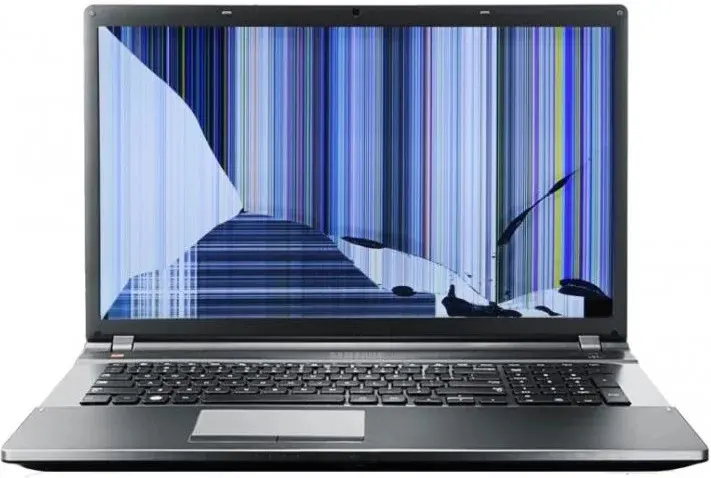
- A black or ink colored blot, cracks or a spiderweb pattern: a broken panel, usually from pressure or a drop. Something left on the keyboard when the lid was closed is a common cause.
- A very dim picture you can see with a flashlight: the backlight has failed. Depending on the laptop, that is the panel or a part on the board.
- Black screen while the laptop runs, and the external monitor works: screen, cable or backlight.
- Problems on both the built in and the external screen: graphics driver or graphics chip on the board.
Before you bring it in
- Back up your files if you can, using an external monitor if the built in screen is unusable.
- Write down the exact model. It is on a sticker under the laptop or in Settings, System, About.
- Note when it started. A drop, a spill or a recent update helps the diagnostic.
Do not try to pry off the screen bezel on a modern laptop. Many screens are glued in, and the display cable is easy to tear.
Laptop screen repair in Citrus Heights
RepairHub at 6201 Greenback Ln Suite A in Citrus Heights repairs laptop screens and display problems. The diagnostic is free and walk-ins are welcome. Bring the laptop and its charger.
Read more on our laptop screen repair page and the main laptop repair page. MacBook owners should see MacBook screen repair. For an estimate, open the repair calculator with laptop screen selected.