
iPad Not Charging: Causes and What to Try First

By Oleh Hryhorenko, repair technician at RepairHub
Updated
An iPad that will not charge is a bigger problem than it sounds, because it often belongs to a kid, a student or someone who uses it for work every day. Before you assume the worst, know that iPads are pickier about chargers than iPhones are, and a lot of “broken” iPads are really an underpowered adapter or a port full of lint. Here is how to narrow it down.
In this guide 8 sections
Read what the iPad is telling you
Look at the battery icon in the top corner while it is plugged in.
- A lightning bolt means it is charging, even if slowly.
- “Not Charging” next to the battery usually means the power source is too weak. You will often see this when an iPad is plugged into a computer’s USB port or a small phone charger.
- Nothing changes at all means no power is getting through. That points at the cable, the adapter or the port.
- A plug icon and a nearly empty battery on a black screen means the battery was fully drained. Leave it plugged in for at least half an hour before you judge it.
Use a strong enough adapter
iPads have bigger batteries than phones and need more power. A small 5 watt cube from an old iPhone can barely keep an iPad going while you use it, and some combinations will not charge it at all.
Use the adapter that came with the iPad or another USB-C adapter of 20 watts or more from a known brand. Plug it straight into a wall outlet, not a power strip with a USB port, a car socket or a keyboard. Then let the iPad sit, screen off, for 30 minutes.
Rather have us fix it?
Free diagnostic, walk-ins welcome at 6201 Greenback Ln Suite A, Citrus Heights.
Rule out the cable
Cables fail more often than iPads do. Signs of a bad cable:
- it works only when bent a certain way
- the connector is discolored or the outer jacket is split near the ends
- it charges your phone slowly or not at all
Try a different cable that you know works. If the iPad charges with the second cable, you are done.
Clean the port carefully
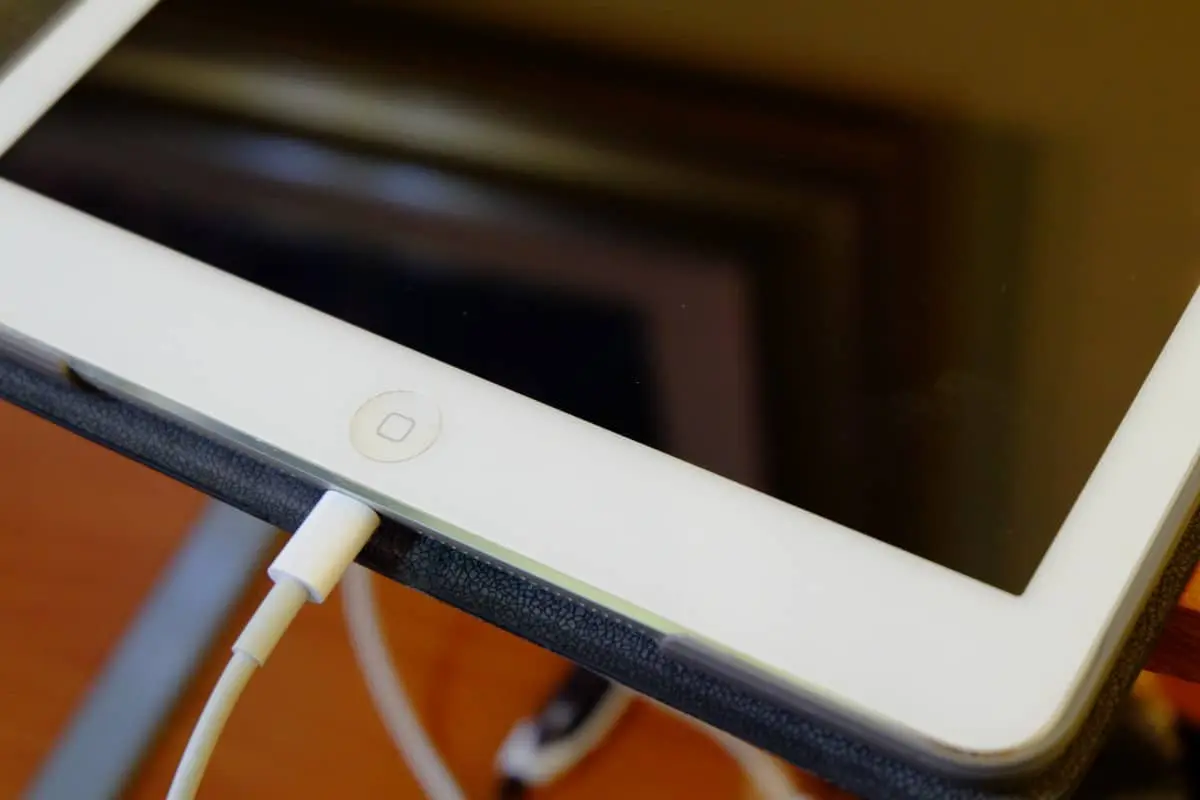
Lint and dust from backpacks and couches get packed into the bottom of the port. Each time you plug in, the cable pushes it deeper until the plug cannot seat fully.
- Turn the iPad off.
- Shine a flashlight into the port.
- If you see packed lint, loosen it gently with a wooden toothpick or a plastic tool, working along the walls, not into the contacts in the middle.
- Blow it out with a few short puffs of air.
Do not use metal pins, paper clips or liquid cleaners. They can scratch the contacts or short them.
Check the temperature and settings
iPads pause charging when they are too hot or too cold, to protect the battery. If it was in a hot car or in direct sun, let it come back to room temperature before you try again.
Some newer iPads have an option in Settings, Battery to limit charging to 80 percent. If yours stops at exactly 80 every time, check that setting before anything else.
Force restart it
A software hang can stop charging from showing up properly.
- iPad with a Home button: hold the Home button and the top button together until the Apple logo appears.
- iPad without a Home button: press and release volume up, press and release volume down, then hold the top button until the Apple logo appears.
Also install any waiting iPadOS update in Settings, General, Software Update once it has some charge.
Signs it needs a repair
If you have tried a good adapter, a second cable, a clean port and a restart, the problem is likely inside. These clues help tell which part:
- The plug feels loose or wobbles in the port, or charging starts and stops when you touch the cable. That is a worn charging port.
- It charges, but the percentage drops fast or jumps around, or the iPad shuts off with charge left. That is usually a worn battery. See iPad battery replacement.
- The screen is lifting from the frame or has a bulge. That is a swollen battery. Stop charging it and bring it in. Do not press on it.
- The iPad gets hot near the port while charging, or nothing happens at all with any charger. That can point to the charging circuit on the board.
- It stopped charging after a drop or a spill.
On many iPads the charging port is soldered to the main board rather than on a separate cable. Replacing it is careful work under a microscope, which we explain in our guide on what microsoldering is. If your iPhone has a similar problem, read phone only charges at one angle.
iPad charging repair in Citrus Heights
RepairHub at 6201 Greenback Ln Suite A in Citrus Heights checks iPads that will not charge. The diagnostic is free and walk-ins are welcome. Bring the iPad and the charger and cable you normally use, so we can test those too.
Read more on our iPad not charging page and the main iPad repair page. For an estimate, open the repair calculator with iPad not charging selected.