Nintendo Switch Won't Charge or Turn On: What to Try First

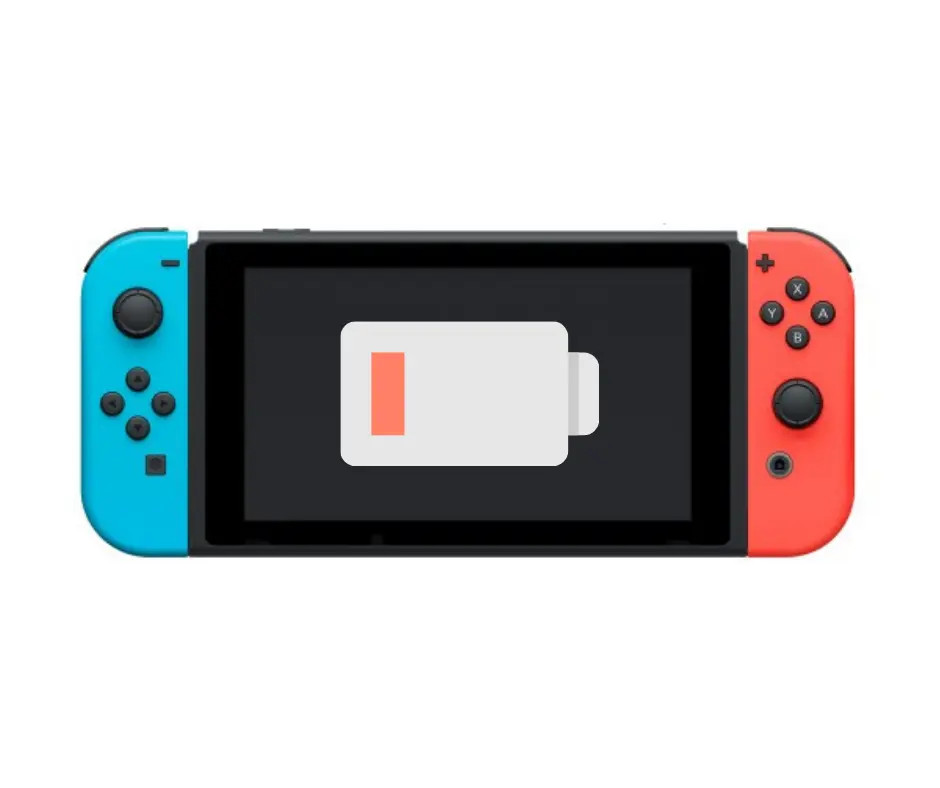
A Switch that will not charge usually falls into one of three groups. The battery is so flat that it needs time before it shows any sign of life. The charger, cable or dock is the problem. Or something inside, usually the USB-C port or the charging chip on the board, has failed. The checks below sort out which one you are dealing with, in the order we would try them.
These steps apply to the original Switch, the Switch Lite and the OLED model. The Lite has no dock, so skip the dock steps for it.
Start with the official charger, plugged into the wall
Plug the console straight into the official Nintendo AC adapter, and plug that into a wall outlet, not a power strip or a USB port on a TV or computer. Leave the dock out of it for now.
The Switch is picky about power. Many phone chargers and cheap USB-C cables either charge it very slowly or not at all, and some do not provide enough power to wake a fully drained console.
If the battery was completely empty, the charging icon may not show right away. Leave it on the official charger for a while before you decide it is dead.
Force a restart
A Switch can look dead when it is actually frozen with a black screen. Hold the power button for about 12 seconds to force it off, let go, then press the power button once to turn it back on. Do this with the console plugged into the official charger.
If you see the Nintendo logo, it was a software freeze rather than a charging fault. Let it charge and check for system updates.
Check the dock separately
If the Switch charges with the adapter plugged directly into the console but not in the dock, the console is fine and the dock or its setup is the issue. Make sure the adapter is plugged into the dock’s AC adapter port, not the USB port, and that the console sits fully down on the connector.
Be careful with unofficial docks and cheap travel docks. Some have been linked to charging chip failures on the Switch, and the damage they cause looks exactly like a console that just stopped charging one day.
Look at the USB-C port
Shine a flashlight into the port at the bottom of the console.
- Lint and dust packed in the port can stop the plug from seating fully. Remove it gently with a wooden or plastic toothpick. Never use metal.
- If the center tongue is bent or loose, or the plug wobbles, the port is damaged.
- If the console only charges when you hold the cable at a certain angle, that is a worn port, not a bad battery.
A damaged port has to be desoldered from the board and replaced. A bent port can also short pins together, which is one way the charging chip gets damaged. So do not keep forcing a cable into a port that feels wrong.
Signs the problem is inside the console
If you have tried the official charger in a wall outlet, forced a restart, and the port looks clean, the problem is likely on the board. Common clues:
- no charging icon at all, even after a long time on the official charger
- it charges a little and then stops, or the percentage goes down while plugged in
- it gets warm near the bottom edge while plugged in but does not charge
- it worked fine until it was used with a different dock or charger
- the problem started after a drop or a spill
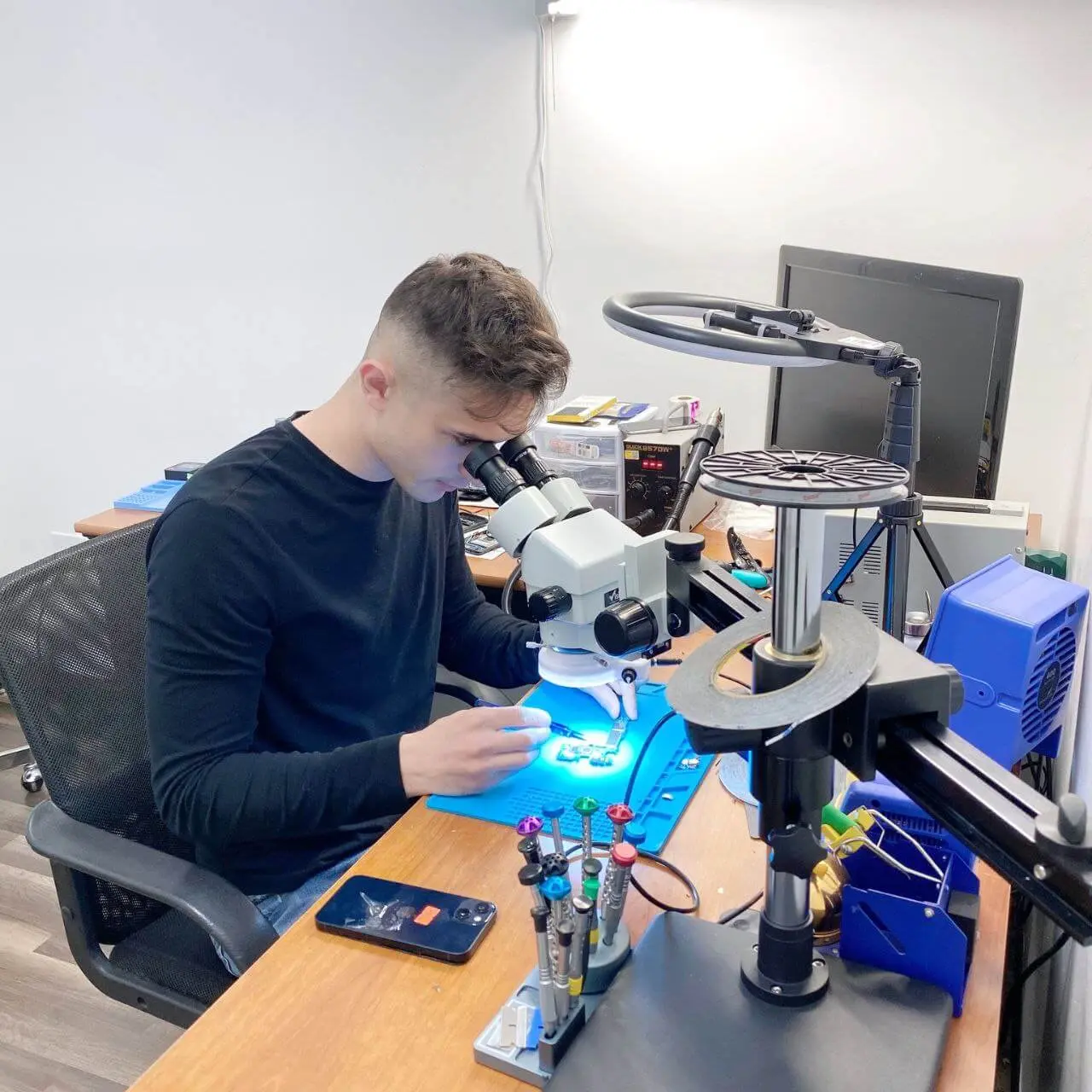
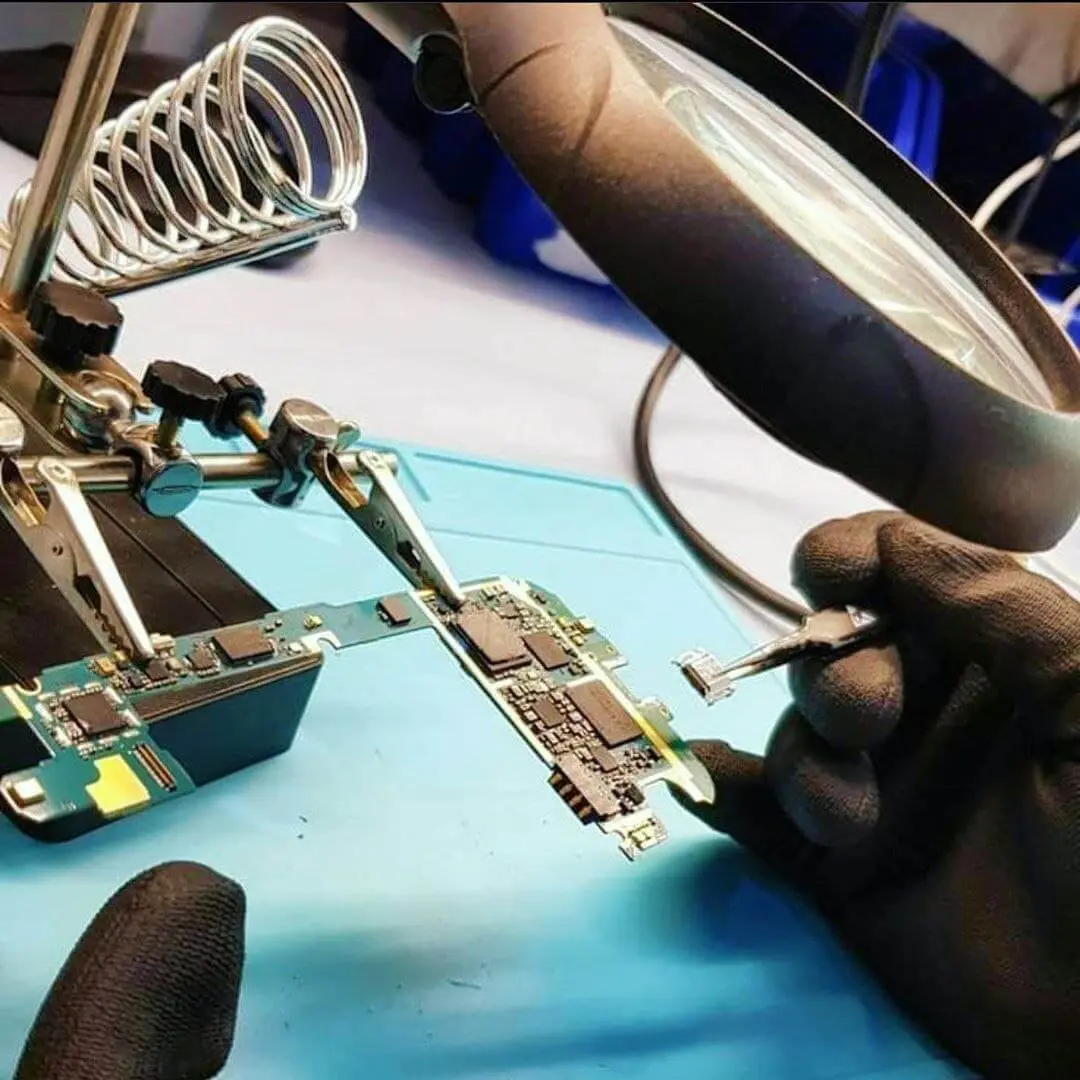
Inside the Switch there is a small chip that manages USB-C power. When it fails, the console stops charging even though the port and the battery are fine. Replacing it is microsoldering work. Sometimes the battery itself is the problem, especially on older consoles that sat discharged for a long time. A diagnostic tells you which.
What not to do
- Do not use a charger that gets hot or smells while plugged in.
- Do not open the console to unplug the battery unless you have done it before. The ribbon cables are thin and tear easily.
- Do not leave a Switch that will not charge plugged into an unofficial dock overnight hoping it will recover.
Switch charging repair in Citrus Heights
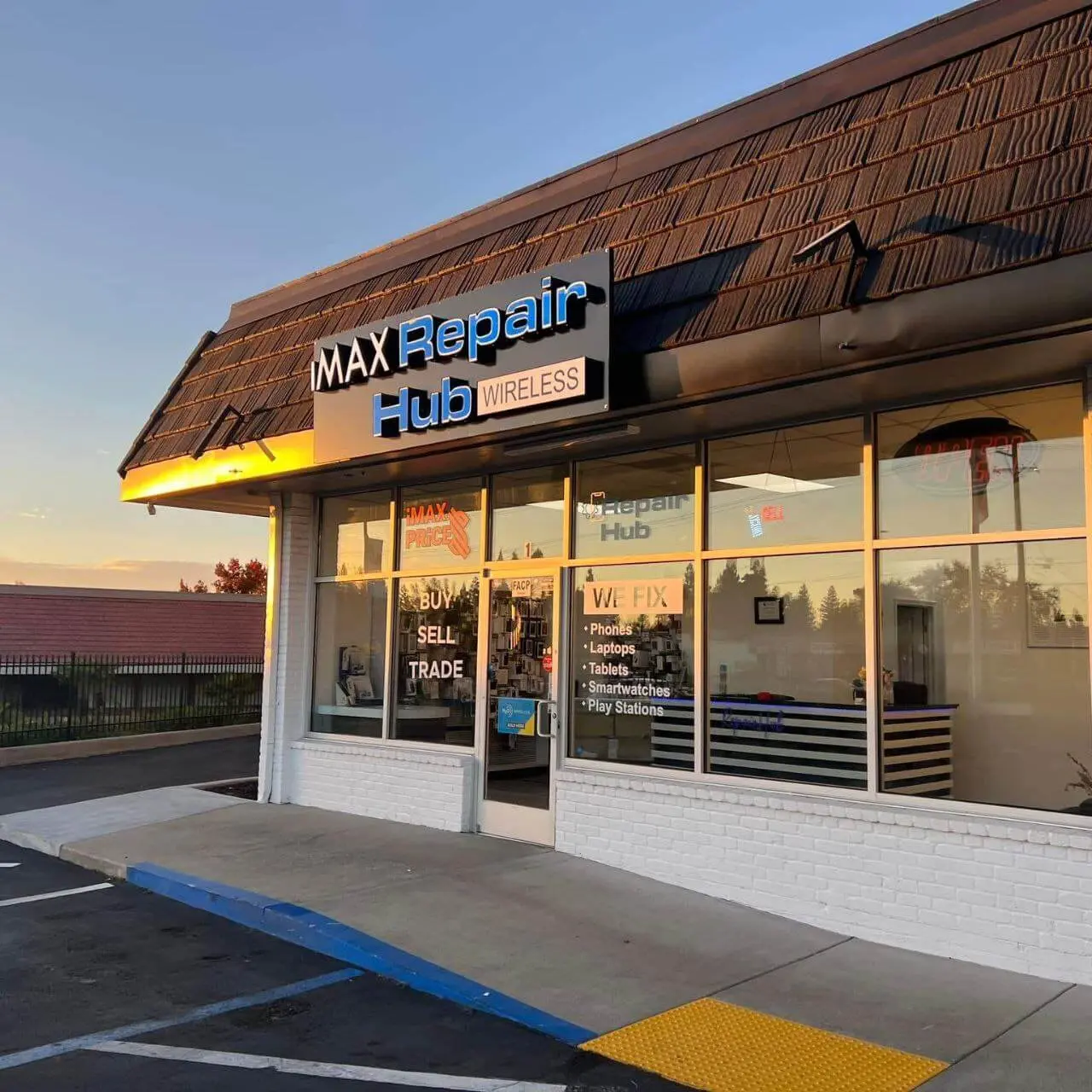
If the official charger, a forced restart and a clean port did not help, bring the Switch to RepairHub at 6201 Greenback Ln Suite A in Citrus Heights. Walk-ins are welcome and the diagnostic is free. Bring the console and, if you have it, the official charger.
Our Switch not charging repair page explains the repair in more detail, and you can check the price for a Switch that won’t charge in the calculator. Drifting Joy-Con as well? See Joy-Con drift repair. Our warranty page explains how repairs are covered.